Google Calendar
Connect your Google Calendar so agencies can see when you are free, and so the tours you accept show up on your own calendar.
What connecting does
Helm checks when you are busy. Helm reads free/busy from the calendars you enable. Times only: no titles, descriptions, locations or guests, and nothing at all reaches an agency beyond whether you are free.
Accepted assignments come as calendar invitations. When you accept a tour assignment, or when an agency you trust auto-confirms it, Helm sends you a Google Calendar invitation for the tour. Accept the invitation in Google and the tour appears on your calendar.
Connecting your calendar
- 1
Start onboarding or open settings
You connect your calendar during onboarding, or later. In the mobile app, go to Profile → Calendar. On the web, go to Settings → Personal details and use the Calendars section.
- 2
Connect your Google account
Sign in with your Google account. Google asks you to grant Helm permission to your calendar.
- 3
Choose calendars to monitor
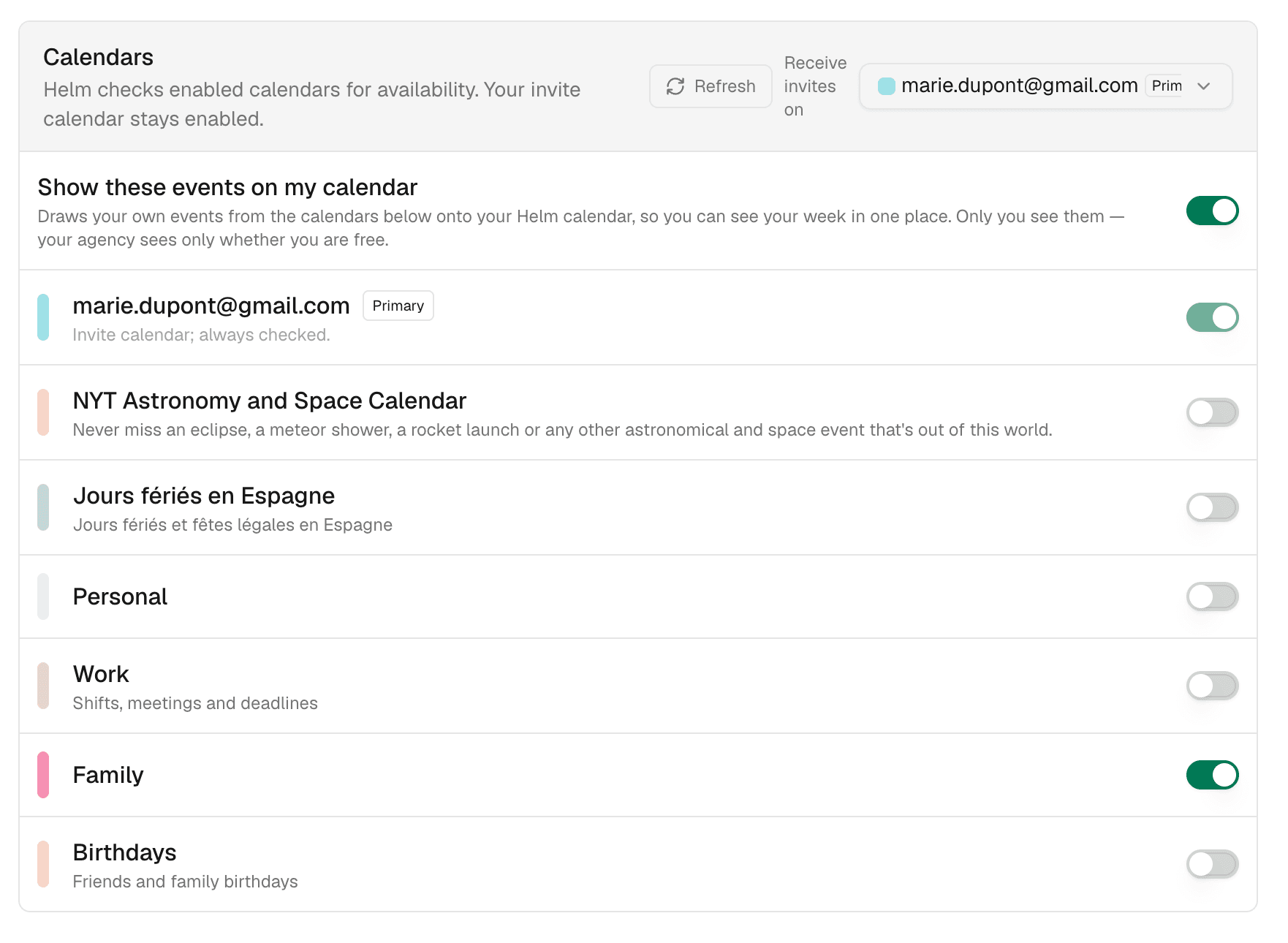
Select which calendars Helm should check for availability. Work, personal, shared: enable the ones that should block your time when an agency checks whether you are available.
- 4
Pick where invites land
Choose the calendar Helm sends tour invitations to: tap Use for tour invites on a calendar during mobile onboarding, or set Receive invites on in the web Calendars section. If you never choose one, invitations go to the main calendar of the Google account you connected.
You can reconnect your calendar at any time, in the mobile app or on the web. Disconnecting is only available on the web. Apple Calendar and Outlook are not supported yet.
What counts as busy
Helm follows Google's own Busy/Free flag on each event. Events marked Busy block you, events marked Free don't, all-day events block the whole day, declined invitations don't block you, and calendars you haven't enabled are ignored.
To stop an event from blocking you, open it in Google Calendar and set it to Free.
Tours on your calendar
When you accept a tour, Helm sends a Google Calendar invitation to your invite calendar. If you enabled auto-accept for an agency, the invitation goes out as soon as that agency assigns you. Google may hold an invitation from Helm in your email until you accept it there, so accept it in Google to put the tour on your calendar. If the tour still isn't on your calendar an hour after you accepted in Helm, Helm sends the invitation once more.
The event includes:
- Tour name and type
- Date, time and duration
- Location, if provided
- Basic details about the tour
The event belongs to Helm, not to you. You can't change its details from your calendar app, and changes to the tour in Helm update it automatically. If the time or location changes after you accept, the event follows. If you decline an assignment or the agency removes you, Helm takes the tour off your calendar.
Answering the Google invitation does not change your assignment. Accept, decline or maybe in Google is a reminder for you alone. When an assignment still needs your decision, accept or decline it in Helm.
Seeing your own events inside Helm
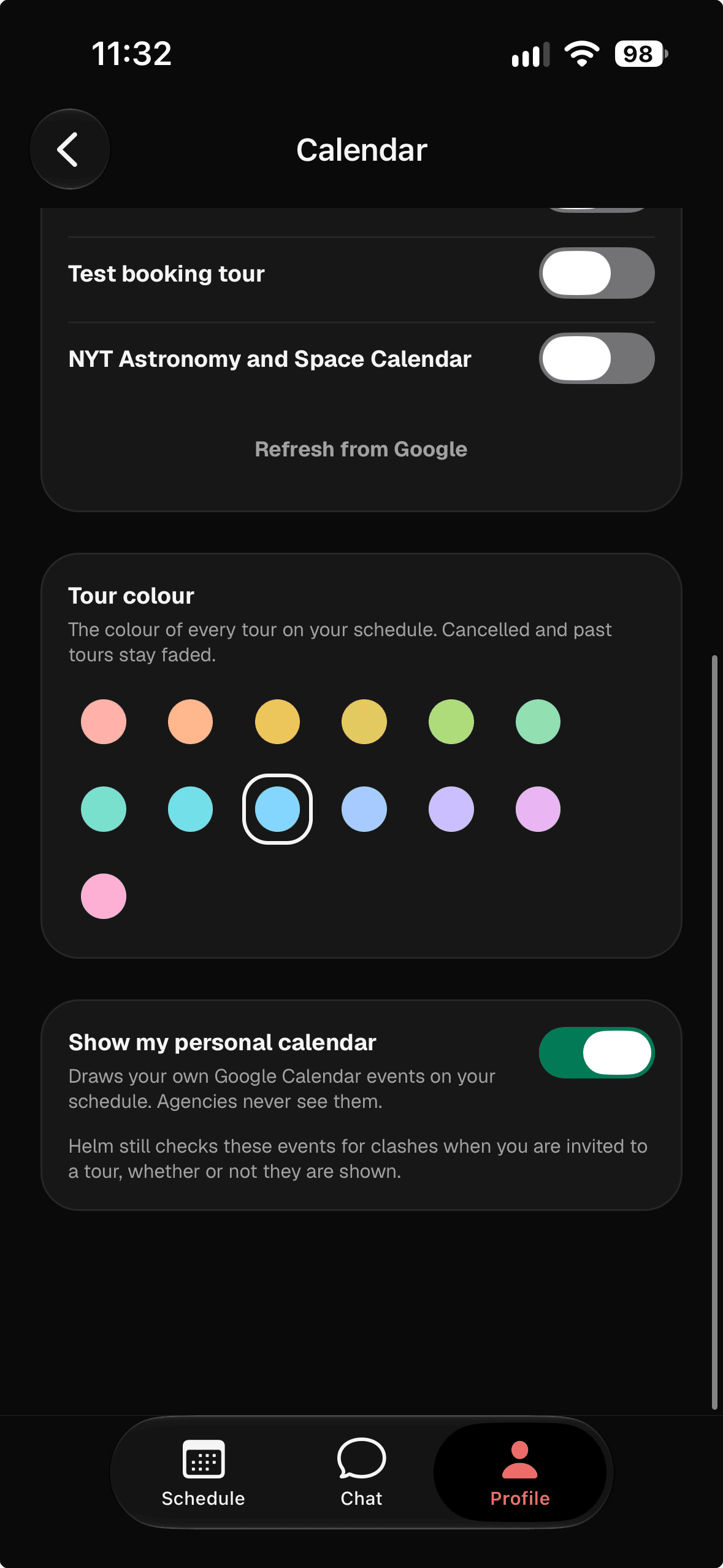
In the mobile app, Profile → Calendar has a switch called Show my personal calendar. On the web, the Calendars section has a switch called Show these events on my calendar. It draws your own Google events, with their titles, onto your Helm schedule so you can see your week in one place.
This is separate from the availability check: those events are visible to you alone and are never sent to an agency. Turning the switch off does not stop Helm checking those calendars for clashes.
Disconnecting or reconnecting
You can disconnect your Google account on the web, from the Google Account row in Settings → Personal details. The mobile app has no disconnect option; it offers Connect or Reconnect Google Calendar, and Refresh from Google to update your calendar list.
If you signed up with Google and have no password, Helm asks you to set one first so you can still sign in. Once disconnected, Helm stops checking your calendar for availability. You can reconnect later without losing any data; you may need to reselect which calendars to monitor.
Troubleshooting
Helm shows me as busy when I'm free
The usual cause is an event marked Busy in Google, including a personal reminder. Open the event in Google Calendar and switch it to Free. If that isn't it, review which calendars you enabled: an old or shared calendar with stale events still blocks your time.
Agencies see 'Availability unknown' next to my name
Helm could not complete the check. Either no calendar is connected, or Helm's calendar permission was lost. Signing into Google somewhere else can overwrite it. Reconnect from Profile → Calendar in the mobile app, or from Settings → Personal details on the web.
Accepted tours aren't appearing on my calendar
Look for the invitation from Helm in the email of your invite calendar and accept it in Google. Until you do, Google may not add the tour. Also check which calendar receives your invitations. Your agency can see whether the tour reached your calendar and can send the invitation again.
I see duplicate calendars or accounts
If you have several Google accounts, make sure you connected the right one. Disconnect any incorrect account on the web, then reconnect with the account you want to use.
A calendar is missing during setup
Check that your Google account has access to it. Shared calendars need explicit permission. If you recently added a calendar in Google, refresh the list: Refresh from Google in the mobile app, or Refresh in the web Calendars section.